Οδηγίες Χρήσης User Manual
Μάθε πώς να χρησιμοποιείς όλες τις λειτουργίες του Γκρικ Subs App. Learn how to use all the features of the Greek Subs App.
1. Ξεκινώντας1. Getting Started
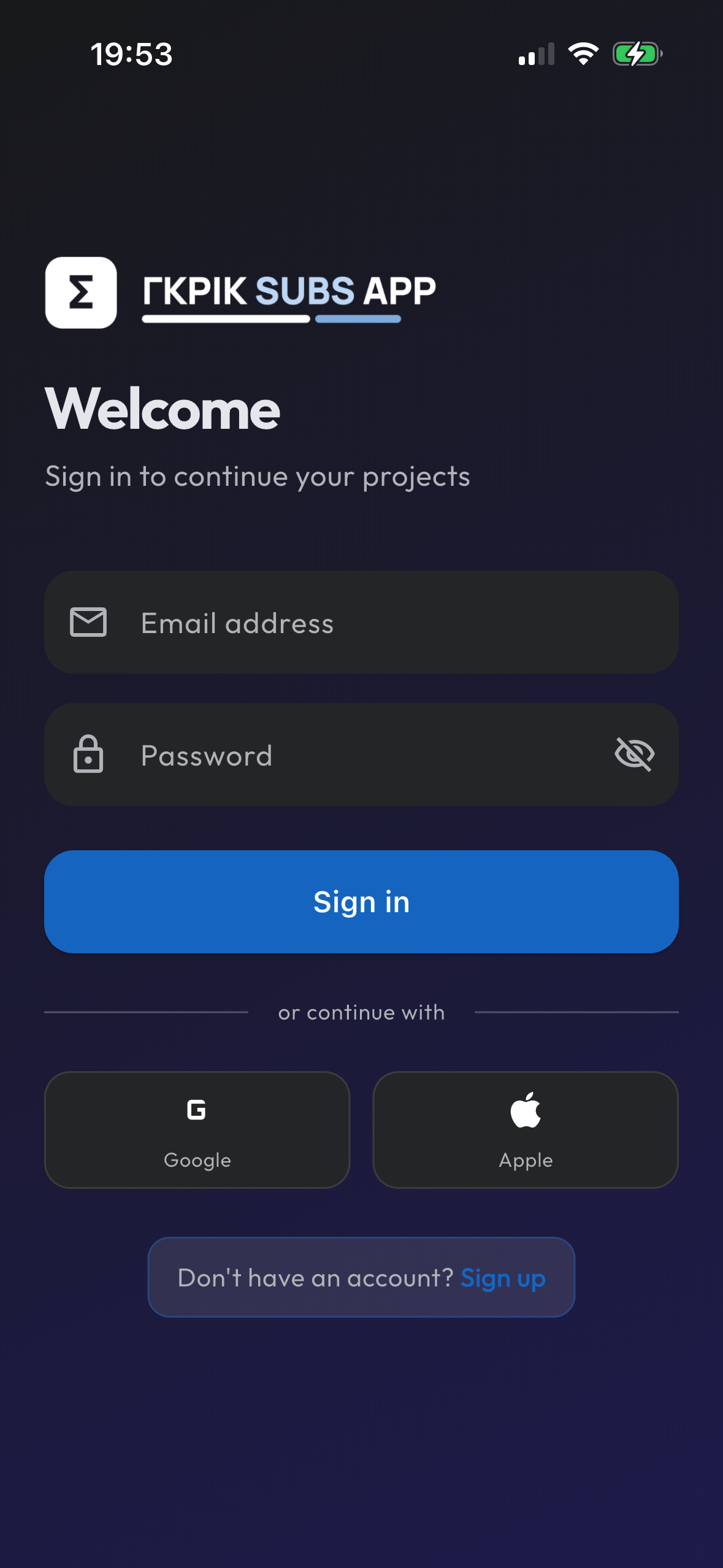
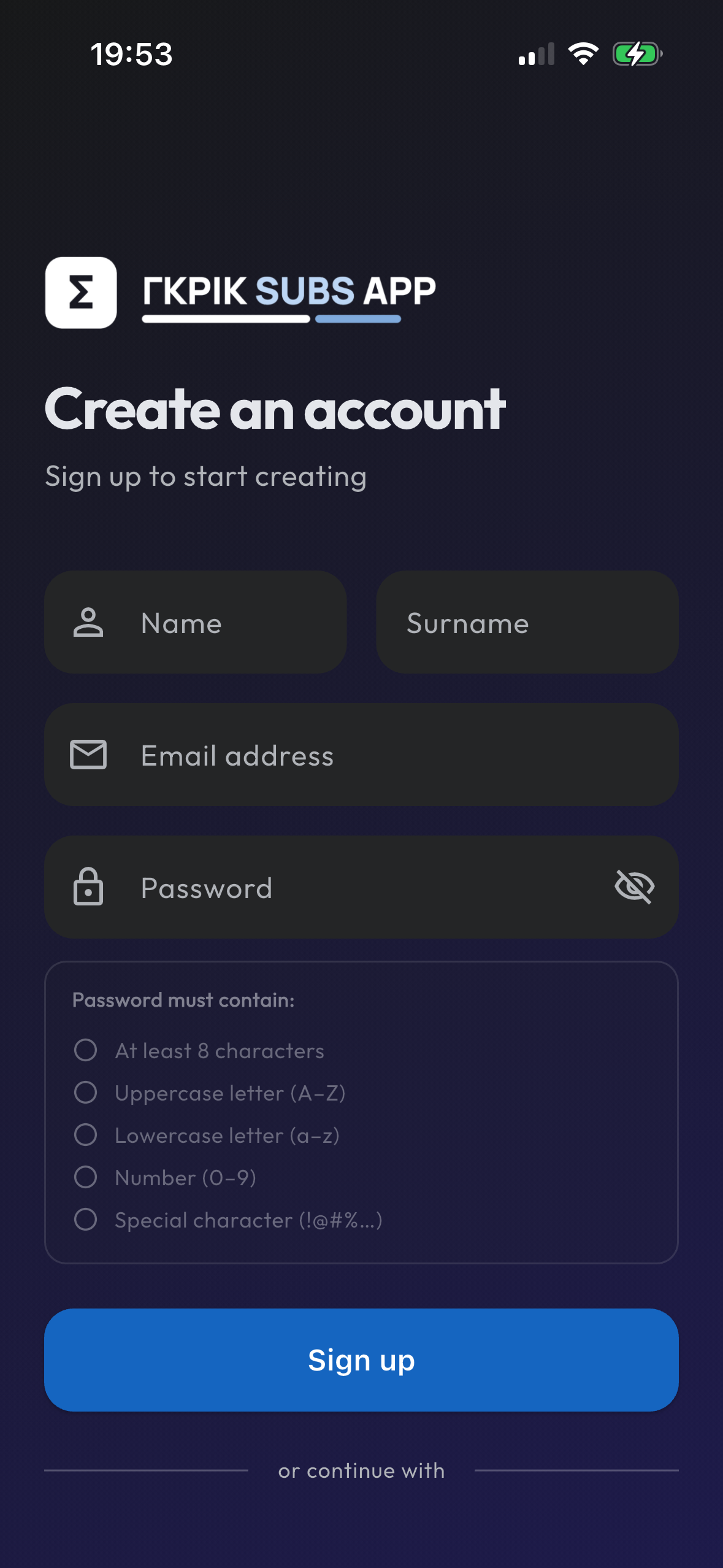
Για να χρησιμοποιήσεις την εφαρμογή θα χρειαστεί να δημιουργήσεις ένα λογαριασμό (Sign Up) ή να συνδεθείς (Sign In). To use the app, you need to create an account (Sign Up) or sign in (Sign In).
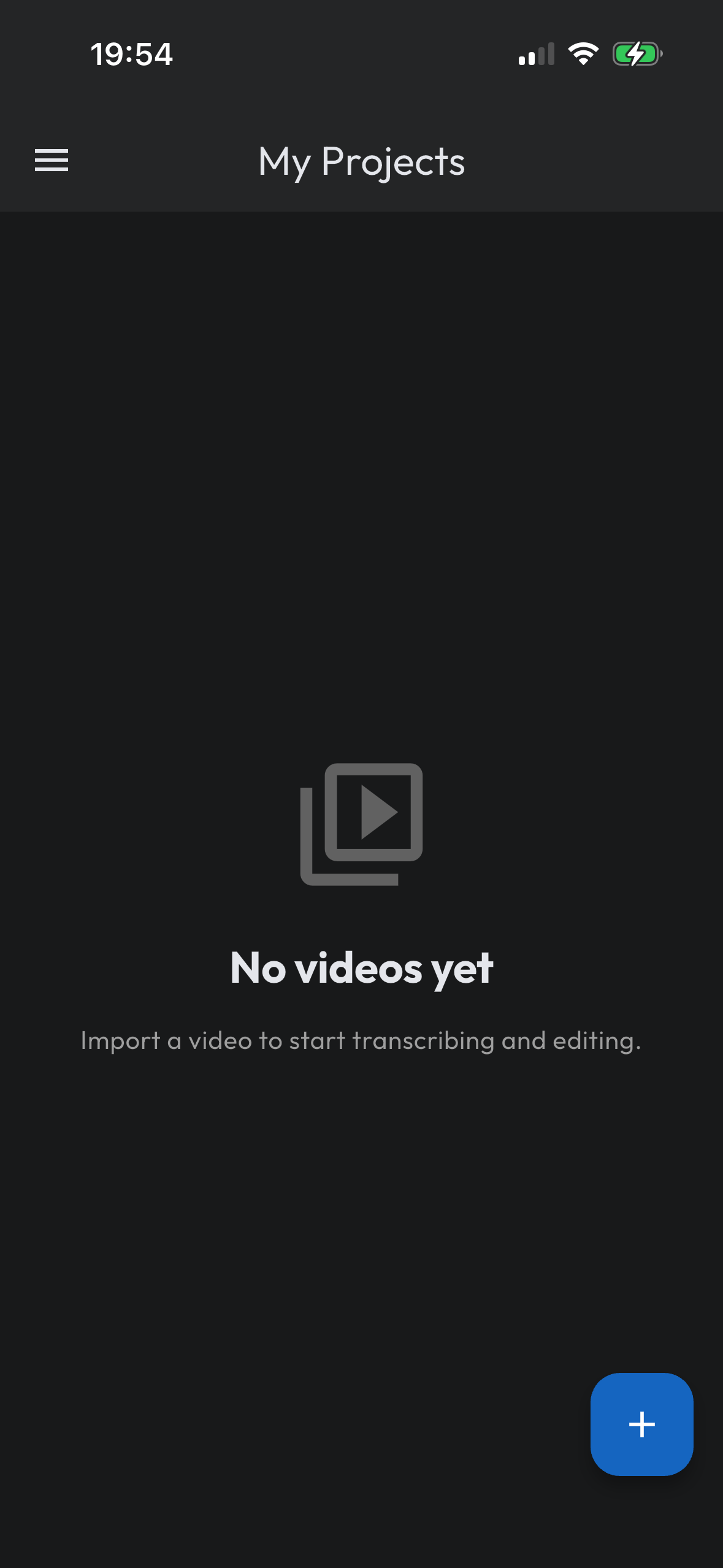
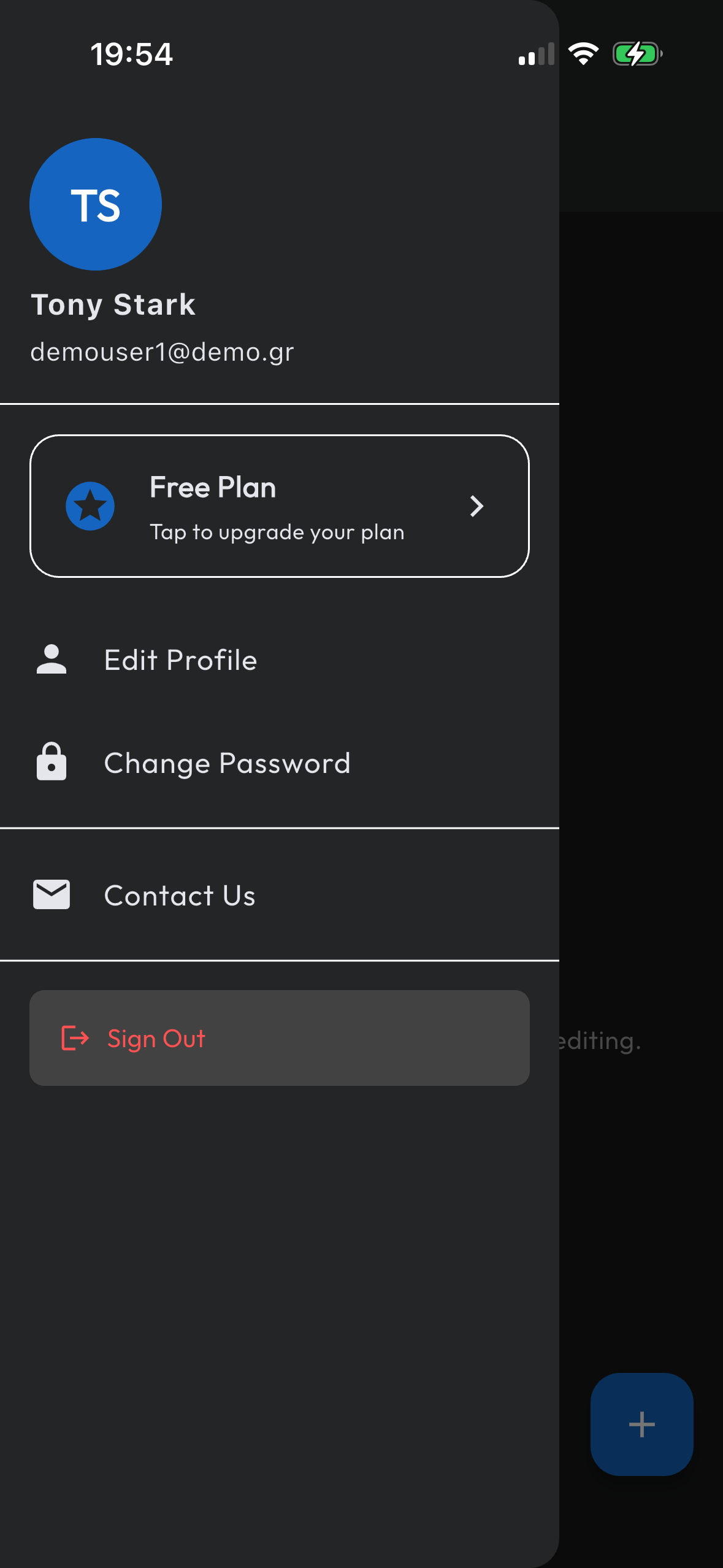
Η αρχική οθόνη ("My Projects") είναι το σημείο όπου οργανώνονται όλα τα βίντεό σου. Κάθε βίντεο που εισάγεις γίνεται ένα νέο project. Μπορείς επίσης να δεις το μενού της εφαρμογής (App Menu). The home screen ("My Projects") is where all your videos are organized. Every video you import becomes a new project. You can also access the App Menu from here.
Προσθήκη νέου βίντεοAdding a new video
- Πάτησε το μπλε κουμπί + (σταυρός) κάτω δεξιά. Tap the blue + (Plus) button at the bottom right.
- Επίλεξε ένα βίντεο από τη συλλογή (Gallery) του κινητού σου. Select a video from your phone's Gallery.
- Η μεταγραφή θα ξεκινήσει αυτόματα. Δες την πρόοδο στην οθόνη σου. Transcription will start automatically. Watch the progress on your screen.
2. Μεταγραφή2. Transcription
Μόλις επιλέξεις ένα βίντεο, η εφαρμογή απομονώνει τον ήχο και βγάζει το κείμενο των υποτίτλων στα ελληνικά. Once you select a video, the app extracts the audio and produces the subtitles in Greek.
- Αναμονή: Η διαδικασία συνήθως διαρκεί το 1/3 του χρόνου του βίντεο. (π.χ. για βίντεο 1 λεπτού, θα πάρει ~20 δευτερόλεπτα). Waiting time: The process usually takes 1/3 of the video's duration. (e.g., a 1-minute video takes ~20 seconds).
- Ακρίβεια: Το μοντέλο είναι εκπαιδευμένο στην ελληνική γλώσσα, αλλά αν υπάρχουν πολλά background noise ή μουσική, ίσως χρειαστούν μικρές διορθώσεις στο επόμενο βήμα. Accuracy: The model is trained on the Greek language, but if there is a lot of background noise or music, minor corrections may be needed in the next step.
3. Επεξεργασία (Timeline Editor)3. Editing (Timeline Editor)
Αφού ολοκληρωθεί η μεταγραφή, θα μεταφερθείς στον Editor. Εδώ μπορείς να διορθώσεις λέξεις και να συγχρονίσεις τους υπότιτλους. Once transcription is complete, you'll be taken to the Editor. Here you can correct words and synchronize the subtitles.
Επιλογή & Απεπιλογή ΛέξηςSelecting & Deselecting a Word
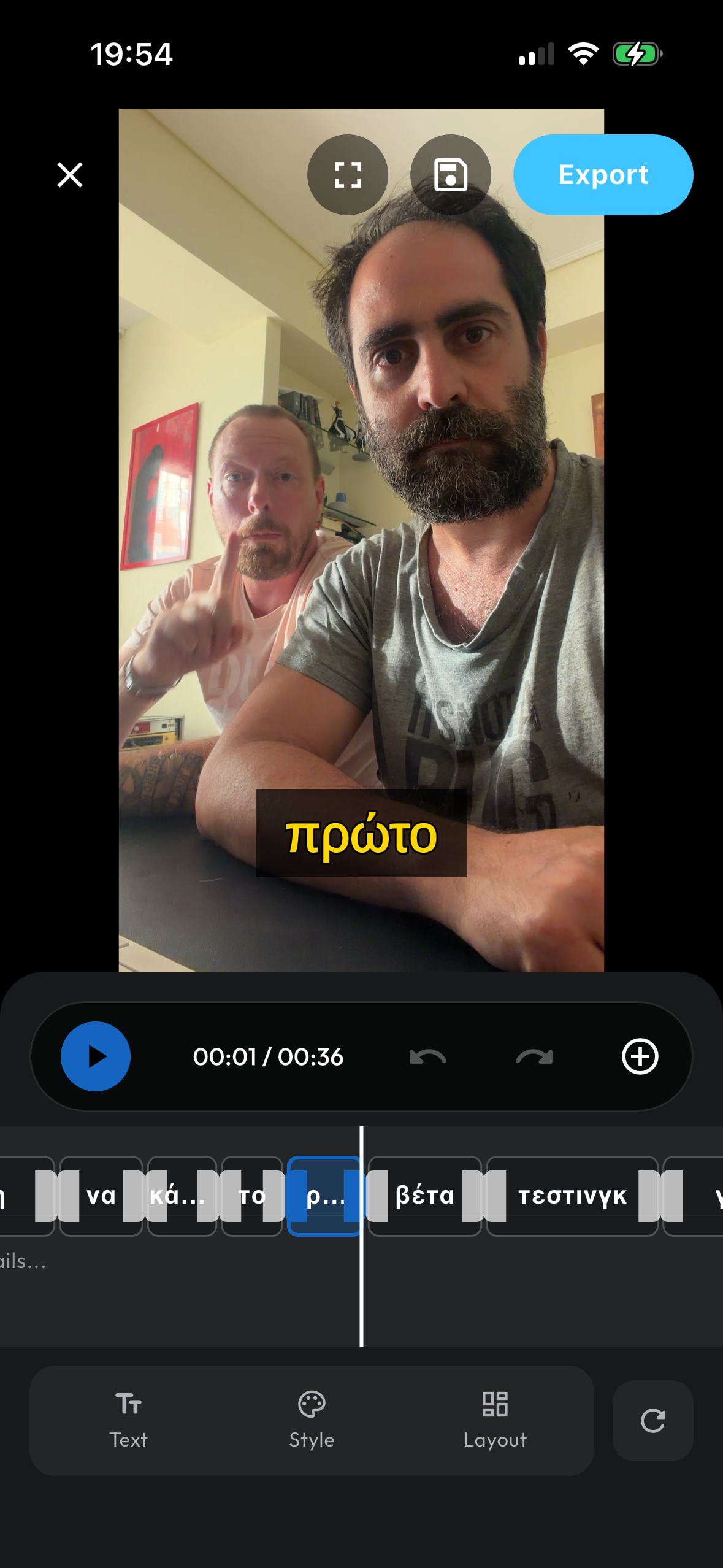
Στο Timeline (κάτω μέρος της οθόνης) κάθε "τουβλάκι" αντιπροσωπεύει μια λέξη. Η επιλογή λέξης είναι το κεντρικό εργαλείο αλληλεπίδρασης — όταν μια λέξη είναι επιλεγμένη, ό,τι αλλάζεις στο Στυλ, στα Animations, ή στη Θέση, εφαρμόζεται μόνο σε εκείνη τη λέξη. In the Timeline (bottom of the screen), each "block" represents a word. Word selection is the core interaction tool — when a word is selected, any changes you make to Style, Animations, or Position apply only to that word.
Πώς γίνεται η επιλογήHow to select
- 1ο Tap: Πάτα μια φορά σε ένα τουβλάκι του timeline → η λέξη επιλέγεται (γίνεται μπλε με border). Τώρα μπορείς να σύρεις τα drag handles για να αλλάξεις τη διάρκεια, ή να αλλάξεις το στυλ/animation μόνο γι' αυτή τη λέξη. 1st Tap: Tap once on a timeline block → the word is selected (turns blue with a border). You can now drag the handles to change its duration, or change style/animation for this word only.
- 2ο Tap (σε ήδη επιλεγμένη λέξη): Πάτα ξανά στην ίδια επιλεγμένη λέξη → ανοίγει το παράθυρο "Επεξεργασία Λέξης" όπου μπορείς να διορθώσεις το κείμενο ή να διαγράψεις τη λέξη. 2nd Tap (on already selected word): Tap again on the already selected word → opens the "Edit Segment" dialog where you can correct the text or delete the word.
- Long Press: Κρατώντας πατημένη μια λέξη (ακόμα και αν δεν είναι επιλεγμένη) ανοίγει κατευθείαν το παράθυρο επεξεργασίας — χωρίς να χρειαστεί δύο tap. Long Press: Holding down on a word (even if not selected) opens the edit dialog directly — without needing two taps.
Απεπιλογή: Για να αποεπιλέξεις μια λέξη, απλά πάτα σε οποιοδήποτε κενό σημείο του timeline (εκτός από τα τουβλάκια). Τότε επιστρέφεις σε "global" mode — οι αλλαγές που κάνεις στο Στυλ/Animations εφαρμόζονται πλέον σε όλες τις λέξεις. Deselection: To deselect a word, simply tap on any empty area in the timeline (outside the blocks). You return to "global" mode — any Style/Animation changes you make now apply to all words.
Διόρθωση κειμένουCorrecting text
Στο κάτω μέρος της οθόνης βλέπεις το Timeline με "τουβλάκια". Κάθε τουβλάκι είναι μια λέξη ή φράση. At the bottom of the screen, you see the Timeline with "blocks". Each block is a word or phrase.
- Κάνε κλικ (Tap) πάνω σε μια λέξη στο timeline. Tap on a word in the timeline.
- Θα ανοίξει το παράθυρο "Επεξεργασία Λέξης". The "Edit Segment" window will open.
- Γράψε τη σωστή λέξη και πάτα Αποθήκευση. Type the correct word and tap Save.
Αλλαγή Διάρκειας Εμφάνισης ΛέξηςChanging Word Display Duration
Μπορείς να αλλάξεις πότε ξεκινά και πότε τελειώνει κάθε λέξη στο timeline, χρησιμοποιώντας τα drag handles — τα μπλε χερούλια που εμφανίζονται αριστερά και δεξιά ενός επιλεγμένου τουβλακιού. You can change when each word starts and ends in the timeline using the drag handles — the blue handles that appear on the left and right of a selected block.
Πώς αλλάζεις τη διάρκειαHow to change the duration
- Πάτα μια φορά σε μια λέξη στο timeline για να την επιλέξεις. Θα δεις δύο μπλε κυκλάκια — ένα αριστερά και ένα δεξιά του τουβλακιού. Tap once on a word in the timeline to select it. You'll see two blue circles — one on the left and one on the right of the block.
- Αριστερό χερούλι: Σύρε αριστερά/δεξιά για να αλλάξεις τον χρόνο έναρξης (start) της λέξης. Left handle: Drag left/right to change the start time of the word.
- Δεξί χερούλι: Σύρε αριστερά/δεξιά για να αλλάξεις τον χρόνο λήξης (end) της λέξης. Right handle: Drag left/right to change the end time of the word.
Η διάρκεια δεν μπορεί να γίνει μικρότερη από 100ms, και δεν μπορεί να επικαλύψει την προηγούμενη ή επόμενη λέξη. Η εφαρμογή σε σταματά αυτόματα στα όρια. Duration cannot go below 100ms, and cannot overlap the previous or next word. The app automatically stops at the boundaries.
Προσθήκη / ΔιαγραφήAdding / Deleting
- Για διαγραφή, άνοιξε την επεξεργασία λέξης και πάτα το κουμπί Διαγραφή (Delete). To delete, open word editing and tap the Delete button.
- Για προσθήκη λέξης που "χάθηκε", χρησιμοποίησε το εικονίδιο + στο Timeline (Add Word at Playhead). Η λέξη θα μπει στο σημείο που βρίσκεται ο κέρσορας (κόκκινη γραμμή). To add a missed word, use the + icon in the Timeline (Add Word at Playhead). The word will be added where the playhead (red line) is located.
Διαχωρισμός Λέξεων (Words / Screen)Word Grouping (Words / Screen)
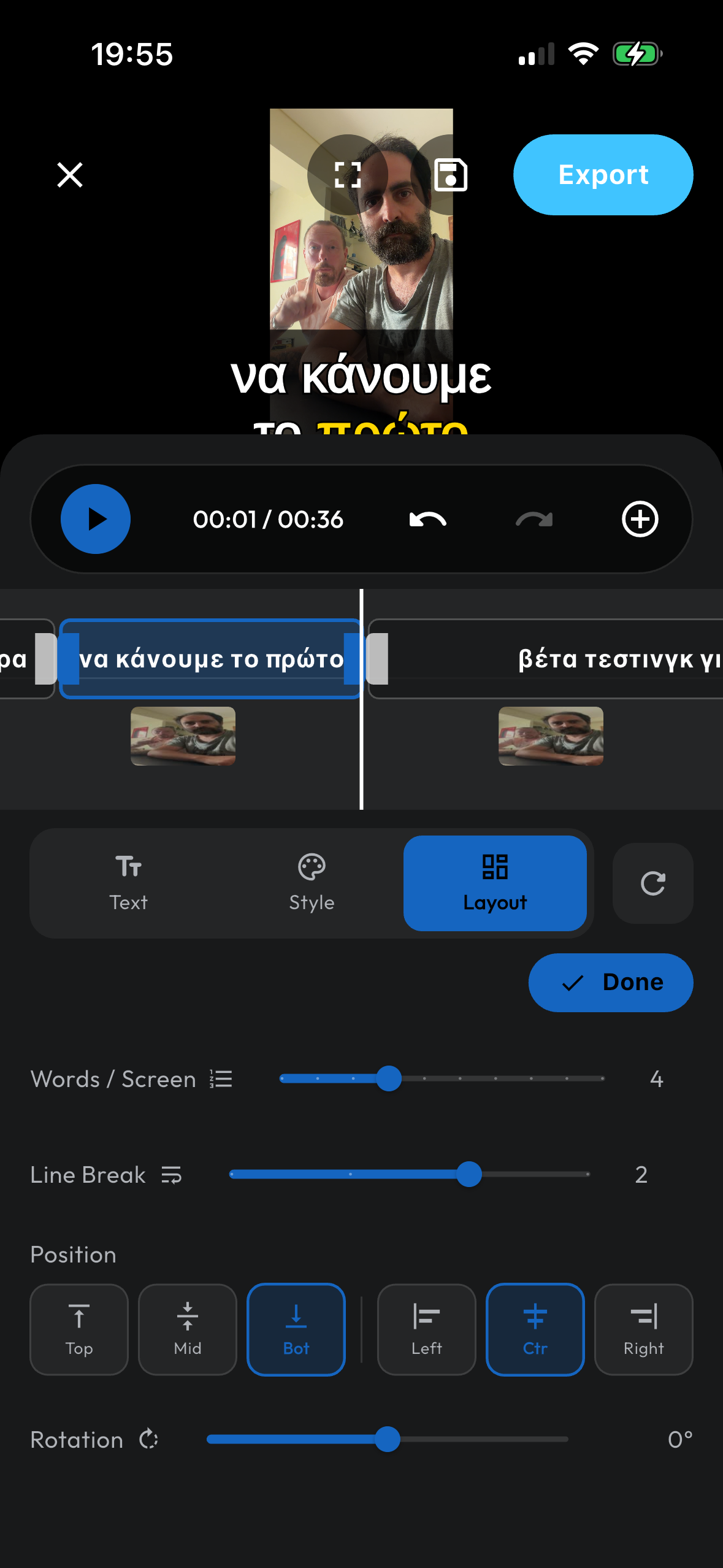
Από το tab "Layout" (τρίτο tab κάτω από το timeline) μπορείς να ελέγχεις πόσες λέξεις εμφανίζονται ταυτόχρονα στην οθόνη και πώς χωρίζονται σε γραμμές. From the "Layout" tab (third tab below the timeline) you can control how many words appear on screen at the same time and how they split into lines.
- Words / Screen:Words / Screen: Slider από 1 έως 10. Ορίζει πόσες λέξεις θα εμφανίζονται μαζί ως μια ομάδα. Π.χ. αν επιλέξεις 3, κάθε 3 λέξεις θα εμφανίζονται ταυτόχρονα και μετά θα αλλάξουν στις επόμενες 3. Slider from 1 to 10. Sets how many words appear together as a group. E.g., if you select 3, every 3 words appear at once and then switch to the next 3.
- Line Break:Line Break: Εμφανίζεται μόνο όταν έχεις ορίσει 2+ Words/Screen. Ορίζει μετά από πόσες λέξεις γίνεται αλλαγή γραμμής (σαν Enter). Π.χ. με 4 λέξεις/screen και Line Break = 2, οι πρώτες 2 εμφανίζονται στην 1η γραμμή και οι άλλες 2 στη 2η. Αν το θέσεις σε Off, όλες οι λέξεις εμφανίζονται σε μία γραμμή. Appears only when you have 2+ Words/Screen. Defines after how many words a line break occurs. E.g., with 4 words/screen and Line Break = 2, the first 2 words appear on line 1 and the next 2 on line 2. Set to Off to keep all words on one line.
4. Στυλ & Εμφάνιση4. Styling & Appearance
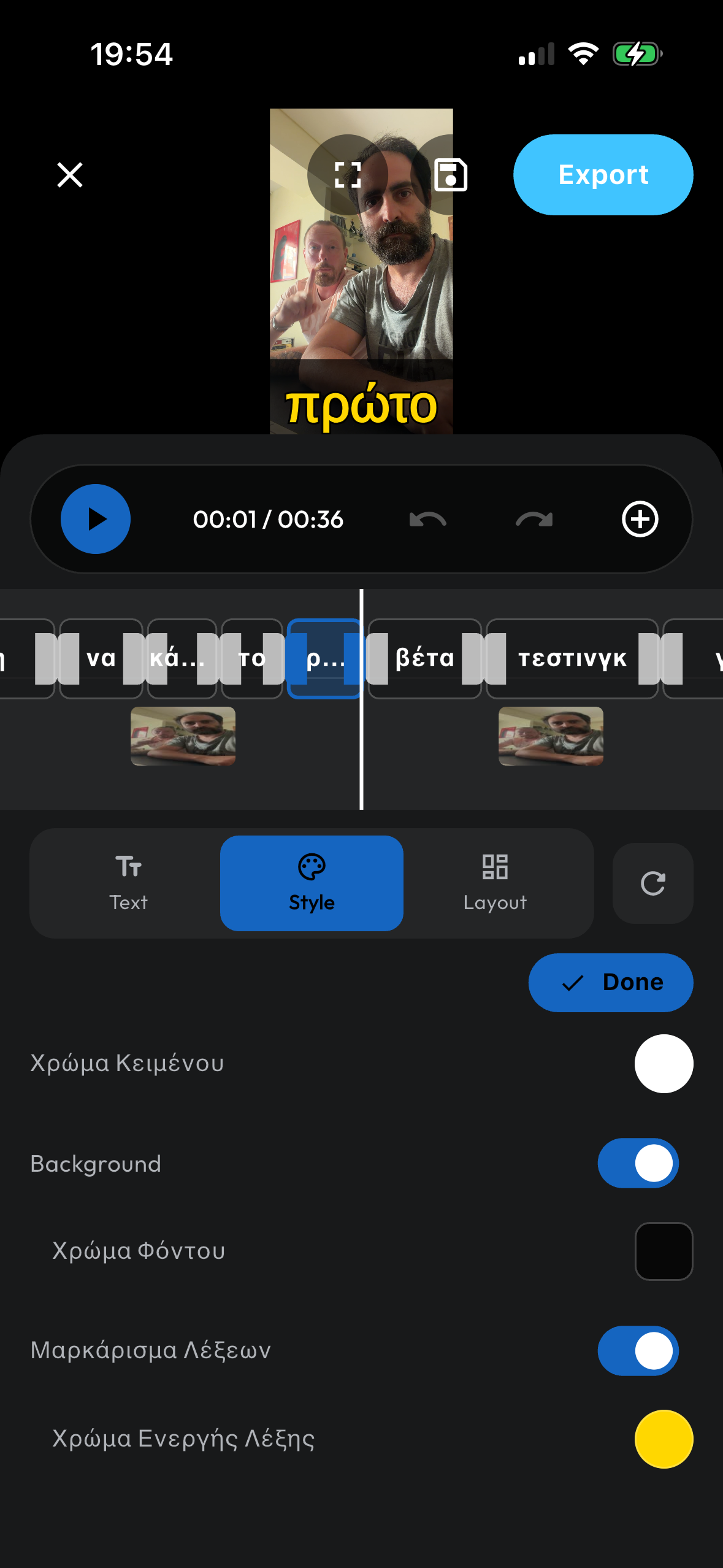
Από το μενού "Στυλ" (μεσαίο tab κάτω από το timeline) ελέγχεις την εμφάνιση των υποτίτλων. From the "Style" menu (middle tab under the timeline) you control the appearance of the subtitles.
Global vs. Per-Word styling: Αν δεν έχεις επιλεγμένη λέξη, οι αλλαγές εφαρμόζονται σε όλο το project. Αν έχεις επιλέξει μια λέξη από το timeline, οι αλλαγές εφαρμόζονται μόνο σε εκείνη — μπορείς δηλαδή να δώσεις διαφορετικό χρώμα ή γραμματοσειρά ανά λέξη! Global vs. Per-Word styling: If no word is selected, changes apply to the entire project. If you've selected a word from the timeline, changes apply only to that word — you can give different colors or fonts per word!
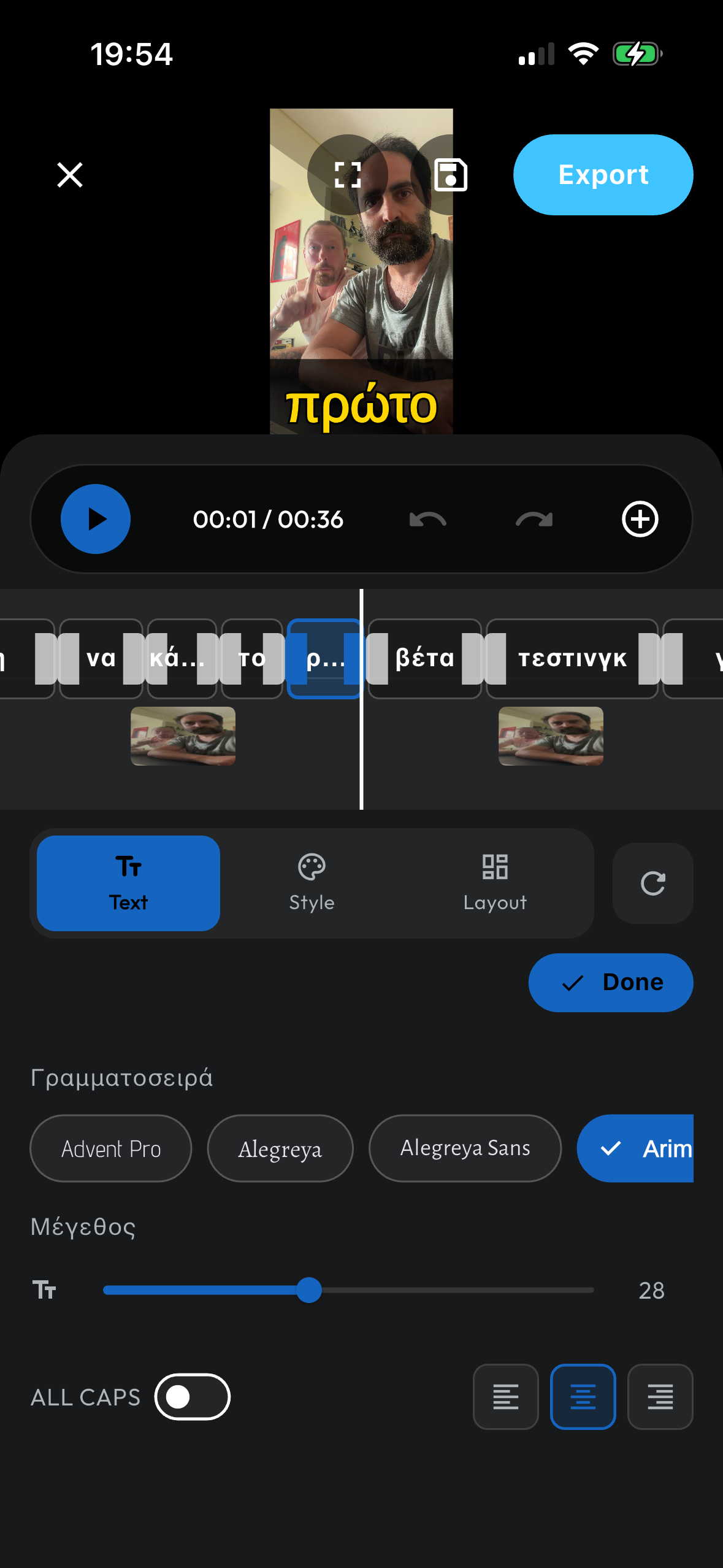
- Γραμματοσειρά:Font: Επίλεξε από 20+ γραμματοσειρές που υποστηρίζουν πλήρως ελληνικά (π.χ. Roboto, Outfit, Montserrat).Choose from 20+ fonts with full Greek support.
- Μέγεθος:Size: Ρύθμισε το μέγεθος με το slider.Adjust the size using the slider.
- Χρώματα:Colors: Άλλαξε χρώμα κειμένου, χρώμα φόντου (background box) και χρώμα περιγράμματος (outline).Change text color, background color, and outline color.
- Karaoke Effect:Karaoke Effect: Όταν είναι ενεργό (on), η λέξη που ακούγεται εκείνη τη στιγμή χρωματίζεται διαφορετικά (Active Word Color).When turned on, the currently spoken word is highlighted with the Active Word Color.
Τοποθέτηση (Layout)Positioning (Layout)
Πήγαινε στο tab "Layout" (τρίτο tab) ή απλά σύρε (drag & drop) το κουτί των υποτίτλων πάνω στο βίντεο για να το βάλεις ακριβώς εκεί που θες (π.χ. πιο ψηλά για να μη κρύβει το πρόσωπό σου). Go to the "Layout" tab (third tab) or simply drag & drop the subtitle box on the video to place it exactly where you want (e.g., higher to not cover your face).
5. Animations5. Animations
Από το tab "Animation" (τέταρτο tab κάτω από το timeline) μπορείς να προσθέσεις εφέ κίνησης στους υπότιτλους. Το animation εφαρμόζεται κάθε φορά που εμφανίζεται μια νέα ομάδα λέξεων στην οθόνη. From the "Animation" tab (fourth tab below the timeline) you can add motion effects to the subtitles. The animation plays each time a new group of words appears on screen.
Global vs. Per-Word animation: Ακριβώς όπως και στο Στυλ, η επιλογή λέξης καθορίζει πού εφαρμόζεται το animation. Global vs. Per-Word animation: Just like in Style, word selection determines where the animation is applied.
- Χωρίς επιλεγμένη λέξη: Το animation εφαρμόζεται σε όλες τις λέξεις του timeline. No word selected: The animation applies to all words in the timeline.
- Με επιλεγμένη λέξη: Εμφανίζεται ένα popup που σε ρωτά αν θες να εφαρμόσεις το animation μόνο σε εκείνη τη λέξη ή σε όλο το timeline. With a selected word: A popup appears asking whether to apply the animation to that word only or to the entire timeline.
Διαθέσιμα AnimationsAvailable Animations
- Καθόλου (None): Οι υπότιτλοι εμφανίζονται χωρίς κανένα εφέ.Subtitles appear with no effect.
- Pop / Scale: Οι λέξεις "ξεπηδούν" στην οθόνη με ένα γρήγορο εφέ μεγέθυνσης.Words "pop" onto the screen with a quick scale-up effect.
- Slide Up: Οι λέξεις εισέρχονται από κάτω προς τα πάνω.Words slide in from bottom to top.
- Slide Down: Οι λέξεις εισέρχονται από πάνω προς τα κάτω.Words slide in from top to bottom.
- Slide In Left: Οι λέξεις εισέρχονται από τα αριστερά.Words slide in from the left.
- Slide In Right: Οι λέξεις εισέρχονται από τα δεξιά.Words slide in from the right.
- Bounce: Οι λέξεις εμφανίζονται με ένα ελαστικό bounce εφέ.Words appear with an elastic bounce effect.
Για να αφαιρέσεις ένα animation από μια λέξη, επίλεξε τη λέξη και πάτα "Καθόλου". Για να αφαιρέσεις τα animations από όλο το timeline χωρίς επιλεγμένη λέξη, πάτα πρώτα σε κενό σημείο του timeline (για απεπιλογή) και μετά πάτα "Καθόλου". To remove an animation from a word, select the word and tap "None". To remove animations from the entire timeline, deselect all words first (tap on empty timeline area) and then tap "None".
6. Export & Αποθήκευση6. Export & Save
Όταν τελειώσεις, πάτα το γαλάζιο κουμπί "Export" πάνω δεξιά. When you're done, tap the light blue "Export" button at the top right.
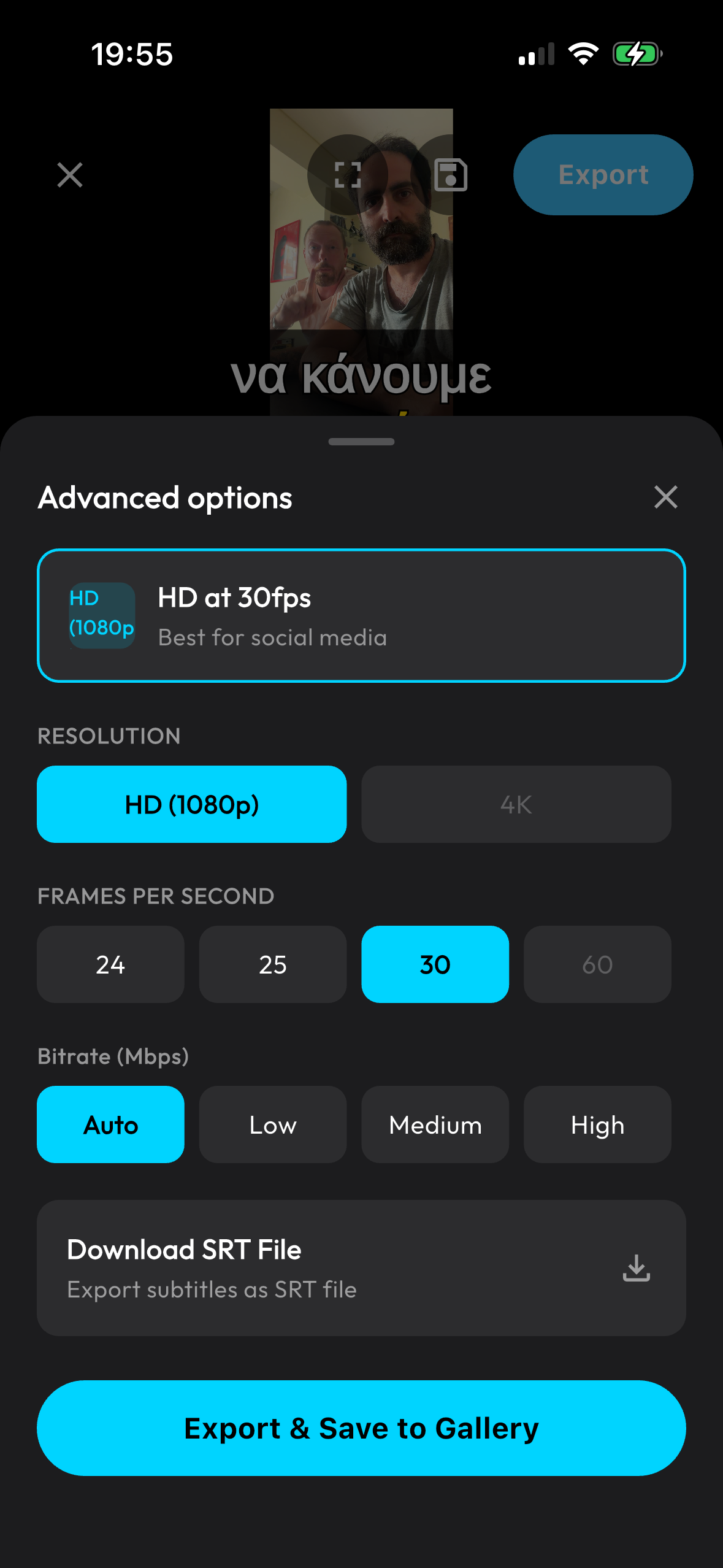
- Επίλεξε Ανάλυση: HD (1080p) ή 4K. (Συμβουλή: Αν το αρχικό βίντεο δεν είναι 4K, επίλεξε 1080p για πιο γρήγορο export). Select Resolution: HD (1080p) or 4K. (Tip: If the original video isn't 4K, choose 1080p for faster export).
- Πάτα Export & Save to Gallery. Tap Export & Save to Gallery.
- Η εφαρμογή θα "κάψει" (burn-in) τους υπότιτλους στο βίντεο. Μην κλείσεις την εφαρμογή! Διάβασε τα αστεία μηνύματα φόρτωσης. 😉 The app will burn the subtitles into the video. Do not close the app! Read the funny loading messages. 😉
Δεν θες βίντεο; Μπορείς απλά να πατήσεις "Download SRT File" από το μενού Export για να πάρεις μόνο το αρχείο των υποτίτλων και να το βάλεις στο Premiere ή στο YouTube. Don't want video? You can just tap "Download SRT File" from the Export menu to get only the subtitle file and use it in Premiere or YouTube.